Create Worlds
The Creating Worlds feature in TrueASSETS allows users to generate world shaders by converting 360 HDR images into usable worlds inside Blender. This documentation provides an overview of the process,and various options available during the world shader creation.
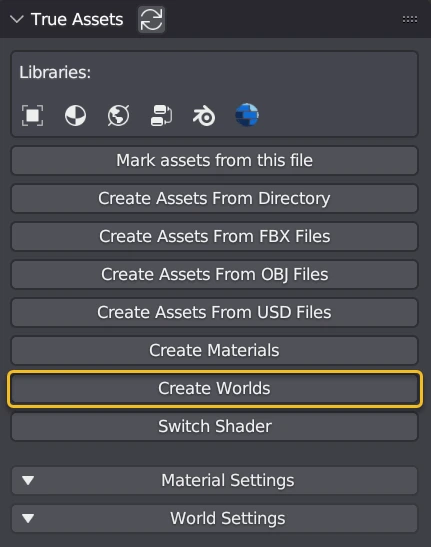
The Importer
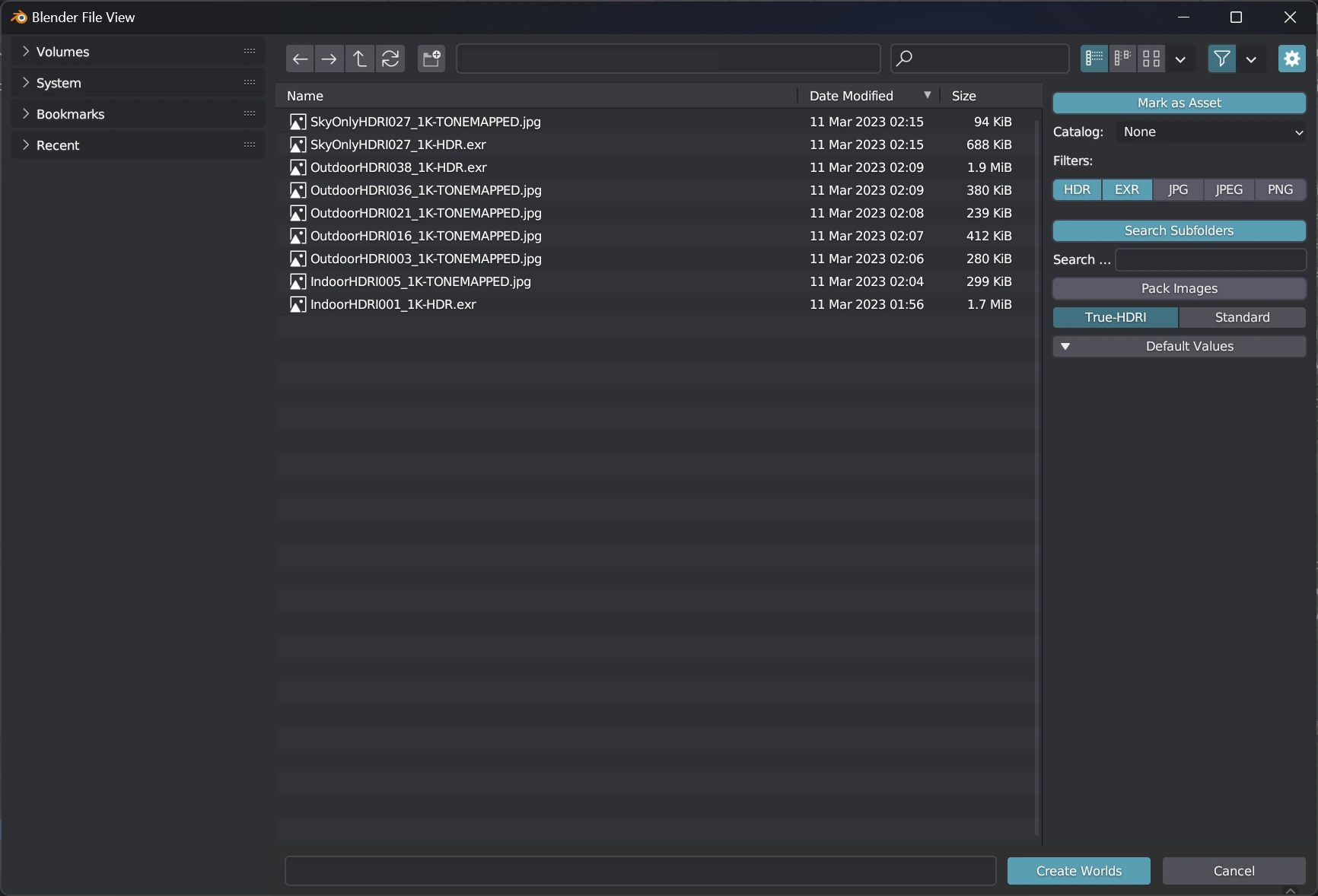
To initiate the world shader creation process, click on the "Create Worlds" button, which will open a file-explorer window. Navigate to a directory containing the 360 HDR images you wish to convert.
Mark as Asset
This will make sure that all environment maps that are found and converted will be marked for future use in your Asset Browser
Catalog
This dropdown option will allow you to put the created worlds into a new or existing catalog.
Pack Images
This function will pack all textures into the new .blend file that is created in your asset directory. This helps make sure that textures are not lost if you move the source directory. THIS WILL LEAD TO MORE STORAGE BEING USED
Filters
By default, TrueASSETS considers 'hdr' and 'exr' file extensions while creating world shaders. However, you can customize the file extensions by toggling the options. You have the flexibility to enable 'jpg', 'jpeg', and 'png' file formats as well, depending on your requirements.
Search Subfolders
You can choose whether the addon should search all subdirectories within the selected folder or only the selected folder itself. This option provides control over the depth of the search process, allowing you to narrow down or expand the scope based on your organization of HDR images.
Shader Types
TrueASSETS offers two types of shaders for world creation:
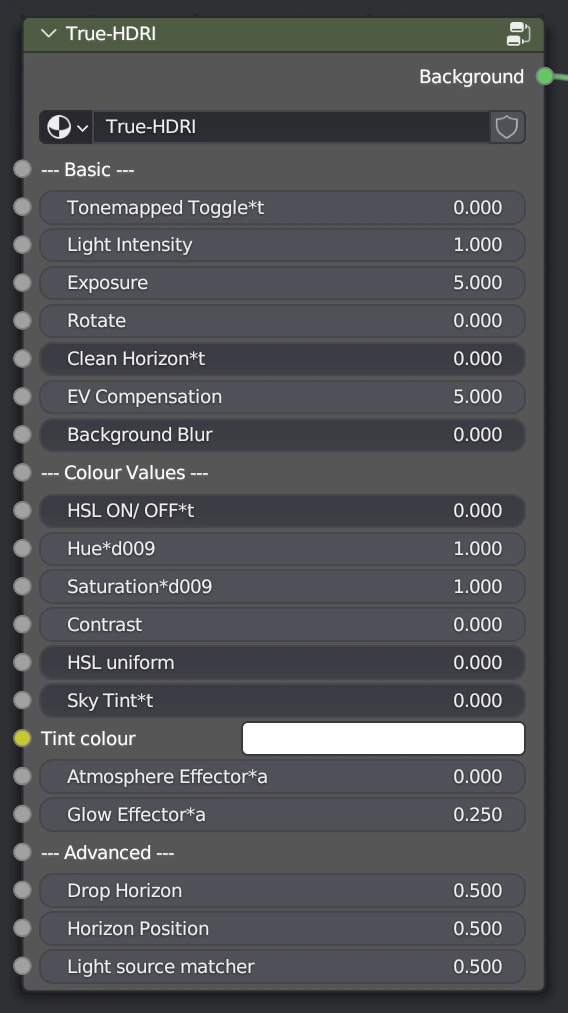
True-HDRI
Specifically designed by True-VFX to work with most of HDR images creating a realistic lighting and background environment. It offers a lot of controls
Standard
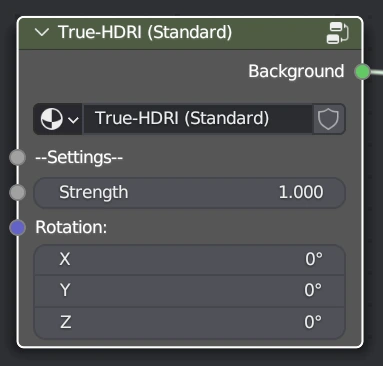
Offers basic functionality for applying a texture as the environment map
Provides flexibility for customizing the shader according to individual preferences
Search
The search functionality within TrueASSETS allows you to filter the imported HDR images based on specific criteria. By populating the search field, only images containing the specified term in their file name will be considered for shader creation.
Default Values
The "Default Values" feature enables you to set specific values for the world shaders during import. These values will be applied as defaults to all the HDR images brought in during the current import session. It is useful when working with a set of similar images and desiring consistent global values for their shaders.